
10 Things to Know Before Buying a Kindle on Amazon
I’ve been asked some questions about Kindle following my other article and I realized that I knew a lot about Kindle.
It’s been almost 5 years since I’ve been reading exclusively ebooks. I’ve bought 3-4 paper books just for the pleasure of flipping through them, but having to part with them even though I bought them pushes me more to buy ebooks, so I can keep them and reread them as many times as I want, wherever I am.
This article is about the Kindle e-reader (Amazon link) but also Amazon’s Kindle service in general.
1. You can use Kindle without buying the Kindle e-reader
There’s Kindle and Kindle.
- Kindle is a service from Amazon where you can read ebooks (paid or free) (download the Kindle apps here)
- The Kindle e-reader, sold by Amazon, is an e-reader (a device) on which you can read ebooks (my e-reader’s Amazon link)
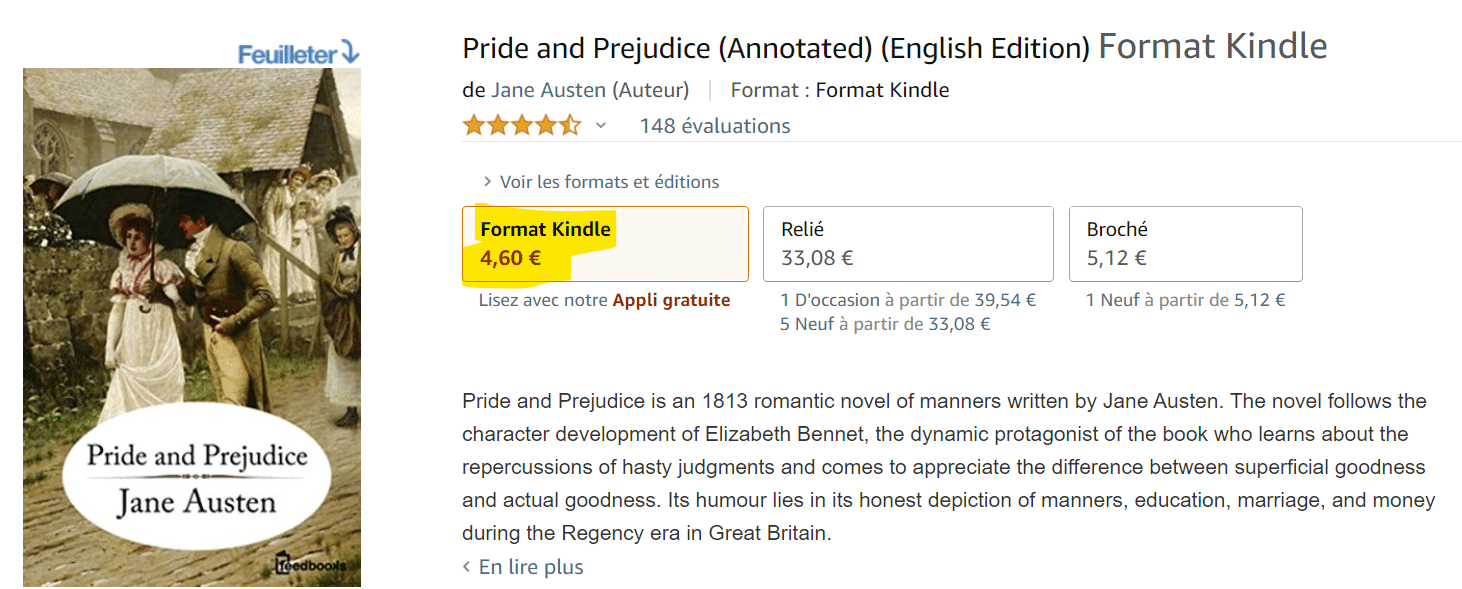
For example, when you’re interested in a book on Amazon, they offer the paper version or the Kindle version. Generally, the Kindle version (ebook) is cheaper even though the content is exactly the same, but they don’t lose money printing and delivering it to your home.
If you buy the Kindle version of the book, you can:
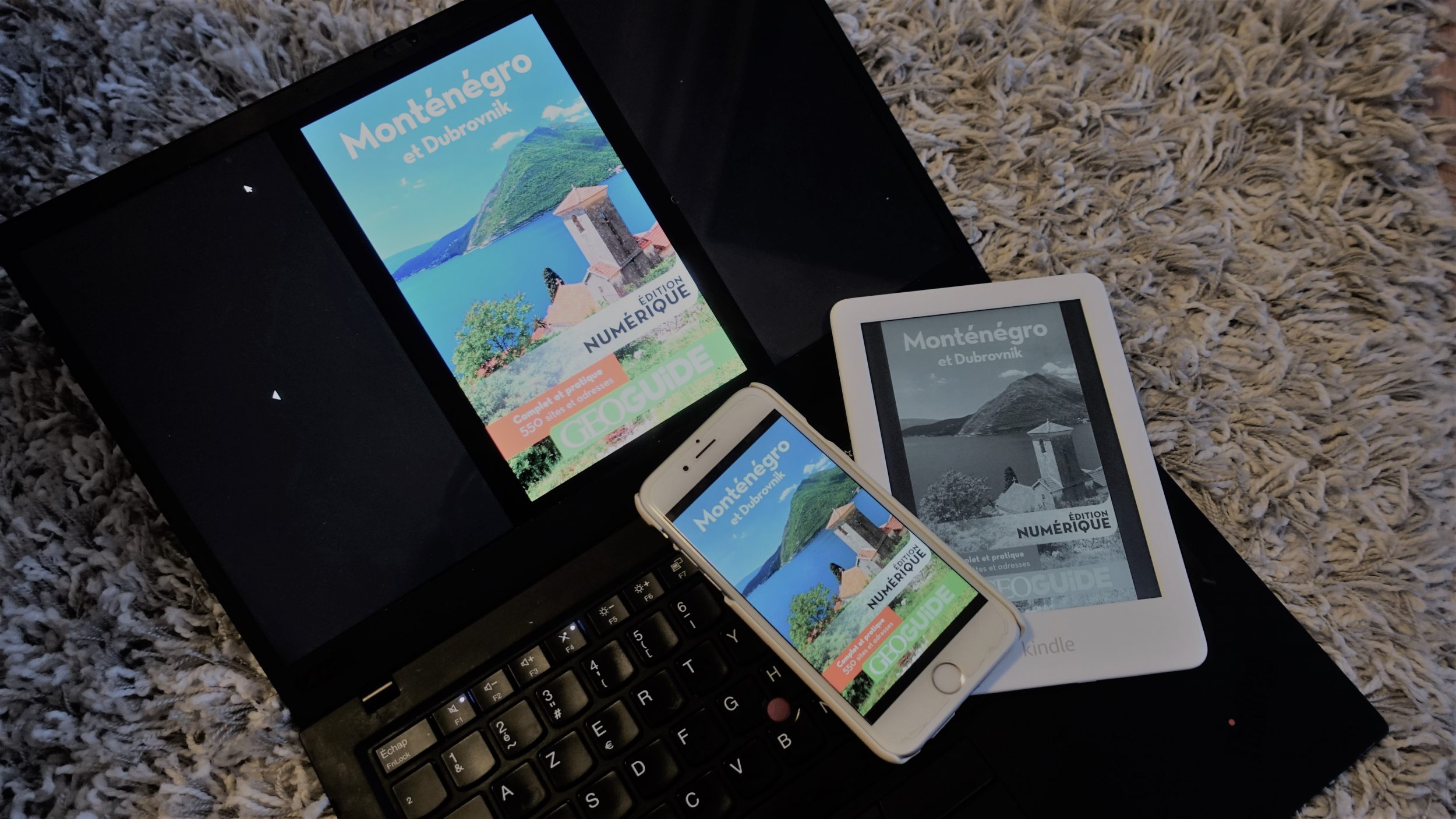
- read on the Kindle apps (available on iOS, Android, Mac, and PC). You just need to install it on your device and enter your Amazon credentials to access it.
- read on your Kindle e-reader
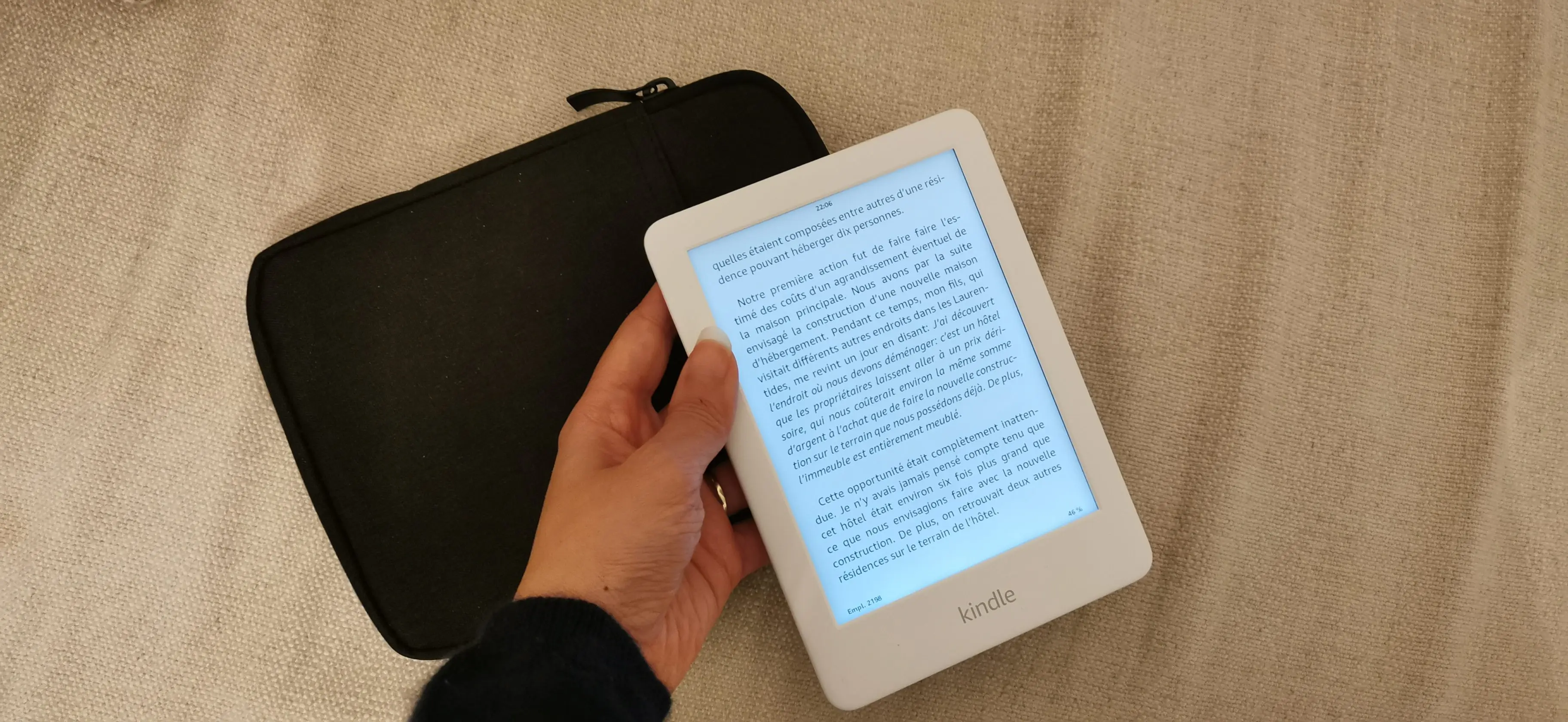
The Kindle e-reader, however, is a machine that can connect to Wi-Fi. The latest versions are touchscreen. It’s bigger than a smartphone but smaller than a tablet. It’s more pleasant for the eyes than a smartphone-type screen because they use electronic ink to simulate a paper book. You can choose to put the light on or not to read better in the dark. (more info in my other article)
So you can see that without the Kindle e-reader, you can still read ebooks purchased on Amazon via an app.
2. You can read books on Kindle without subscribing
Amazon offers a Kindle subscription offer at €10 per month, for unlimited access to their base of a million titles. But these are often old books. I advise against taking this subscription. Plus, many of these books are also accessible for free with a Prime subscription (see point 3), so make a list of the books you’re interested in and check that they’re included in the Kindle subscription before opting for this option.
It’s better to buy your books one by one.
3. There are plenty of free ebooks on Amazon
You can access free books in two ways:
- Either you have access to ancient works (like Maupassant), which have entered the public domain, and you can see the list here
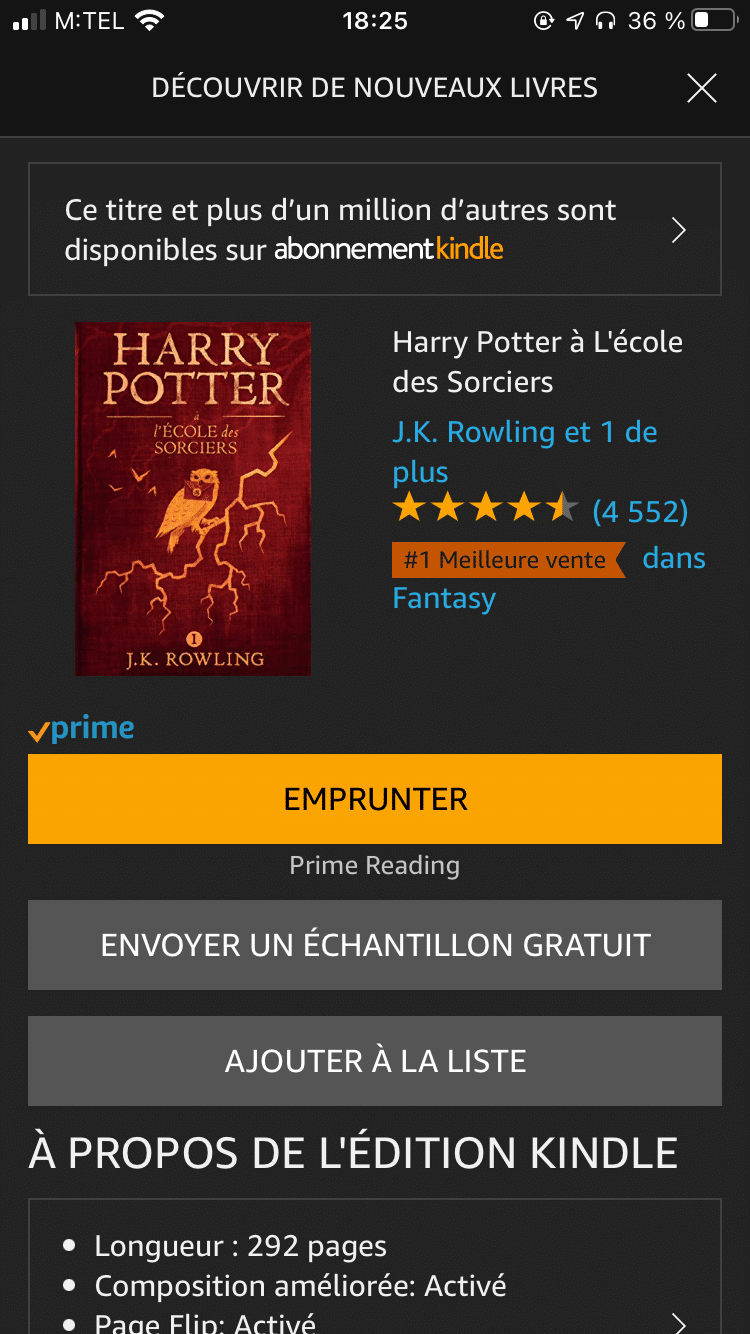
- Or you have access to them through your Prime membership. In short, you can “borrow” them for free until your Prime membership expires. You can access the list here. This list is more interesting because it includes fairly recent, high-quality books (e.g., the entire Harry Potter collection is available). However, they’re a bit hard to find on the apps or on the e-reader, as if Amazon were hiding them, so better use a computer.
4. You can import your own ebooks
Whether with the Kindle app or the Kindle e-reader, you can import your own ebooks (not purchased via Amazon) without any restrictions. Why?
- To have all your ebooks in one single place, which is definitely cooler
- The Kindle app is extremely well designed and offers far more features than a simple PDF read on Acrobat Reader can provide
- If you have a Kindle e-reader, reading on the e-reader is more pleasant and less straining on the eyes than a smartphone or computer screen
How to import ebooks onto the *Kindle e-reader*?
It’s very simple: just connect the e-reader with a USB cable to your computer and copy/paste the file into the folder full of books. In my case, that’s the D:\documents\Downloads\Items01
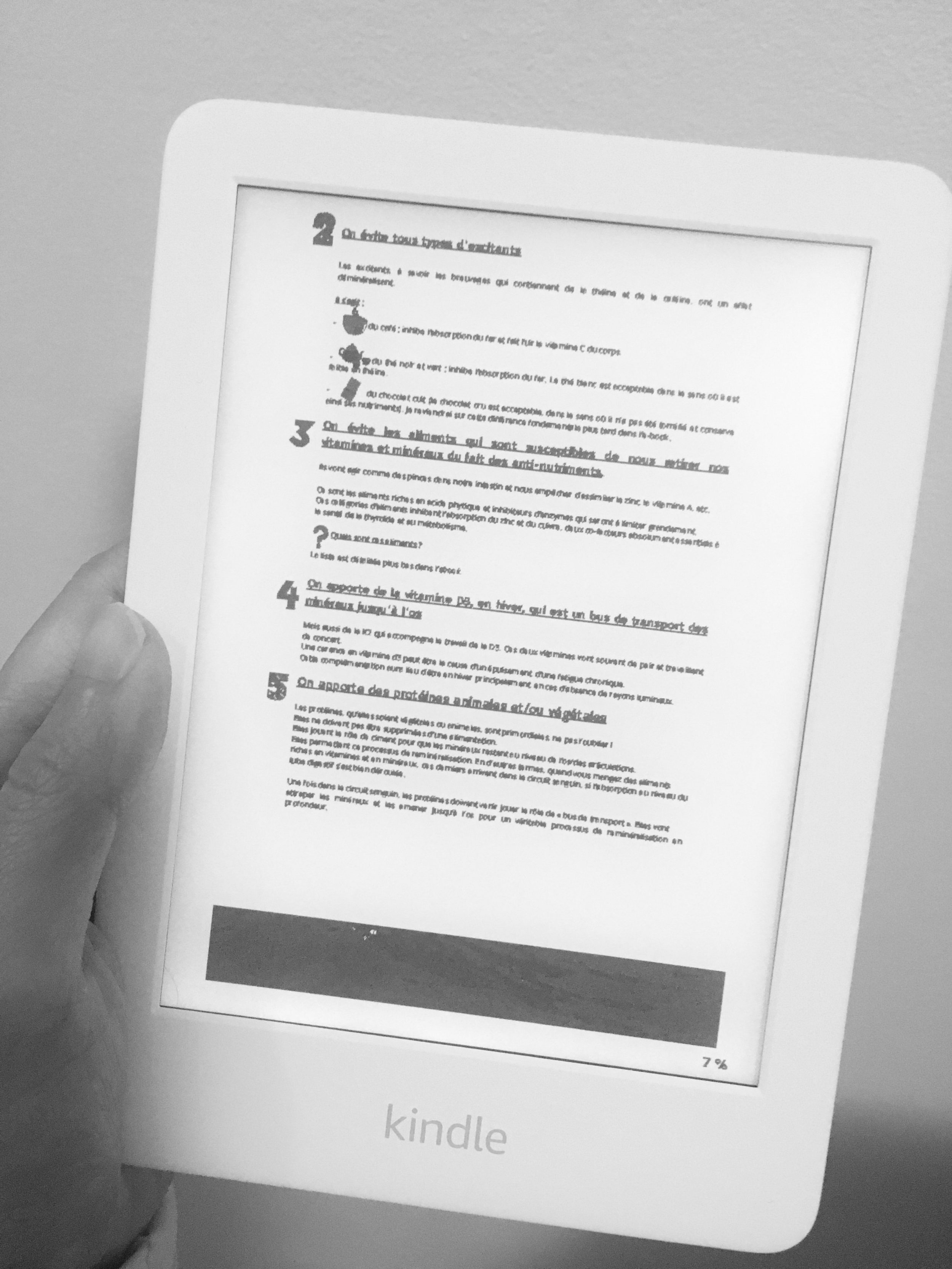
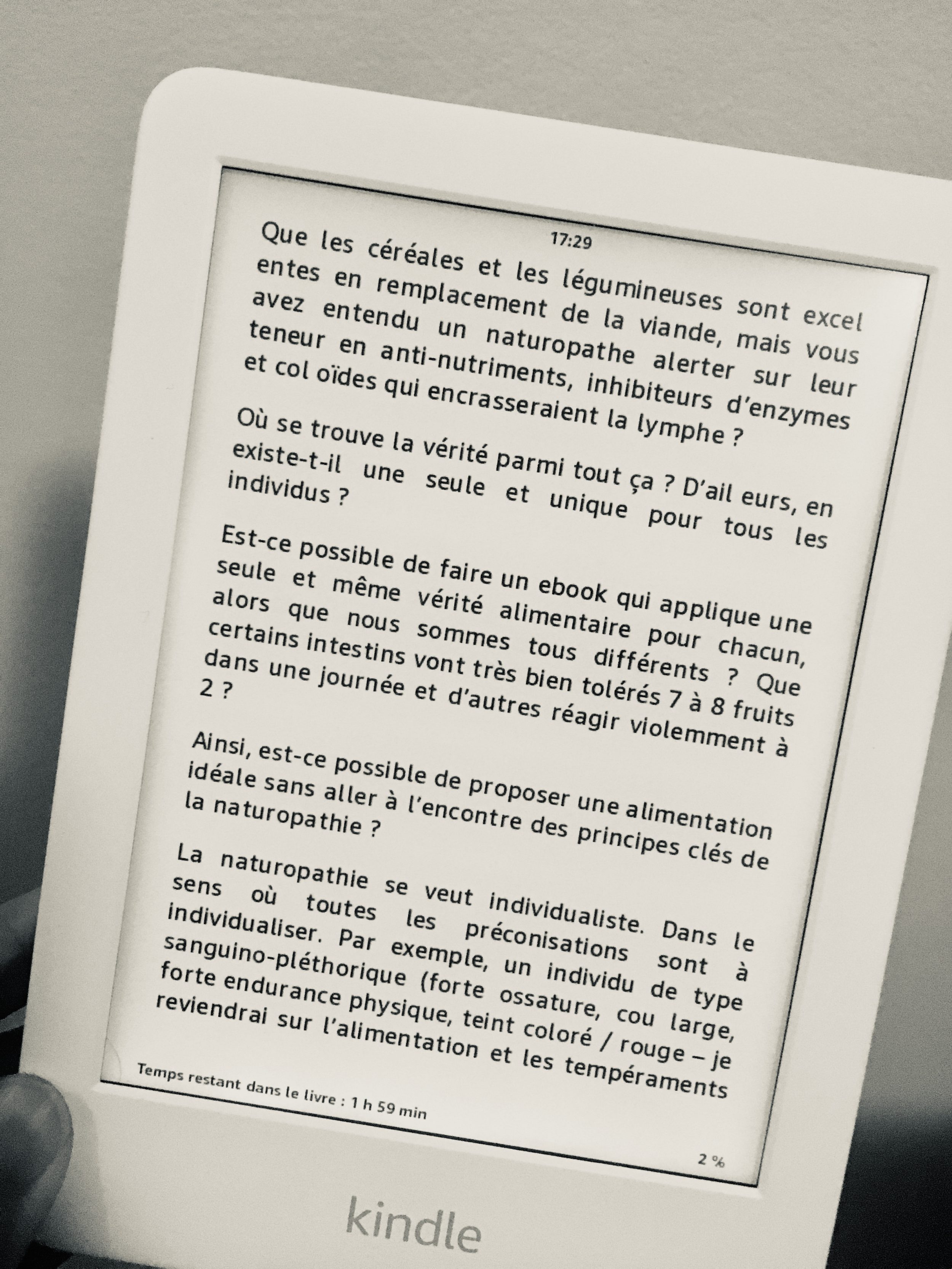
folder. But you’ll notice that PDFs don’t read well on the Kindle e-reader. In that case, you need to convert the PDF to .epub format to better enjoy Kindle features (highlighting, bookmarks, increasing/decreasing font size).
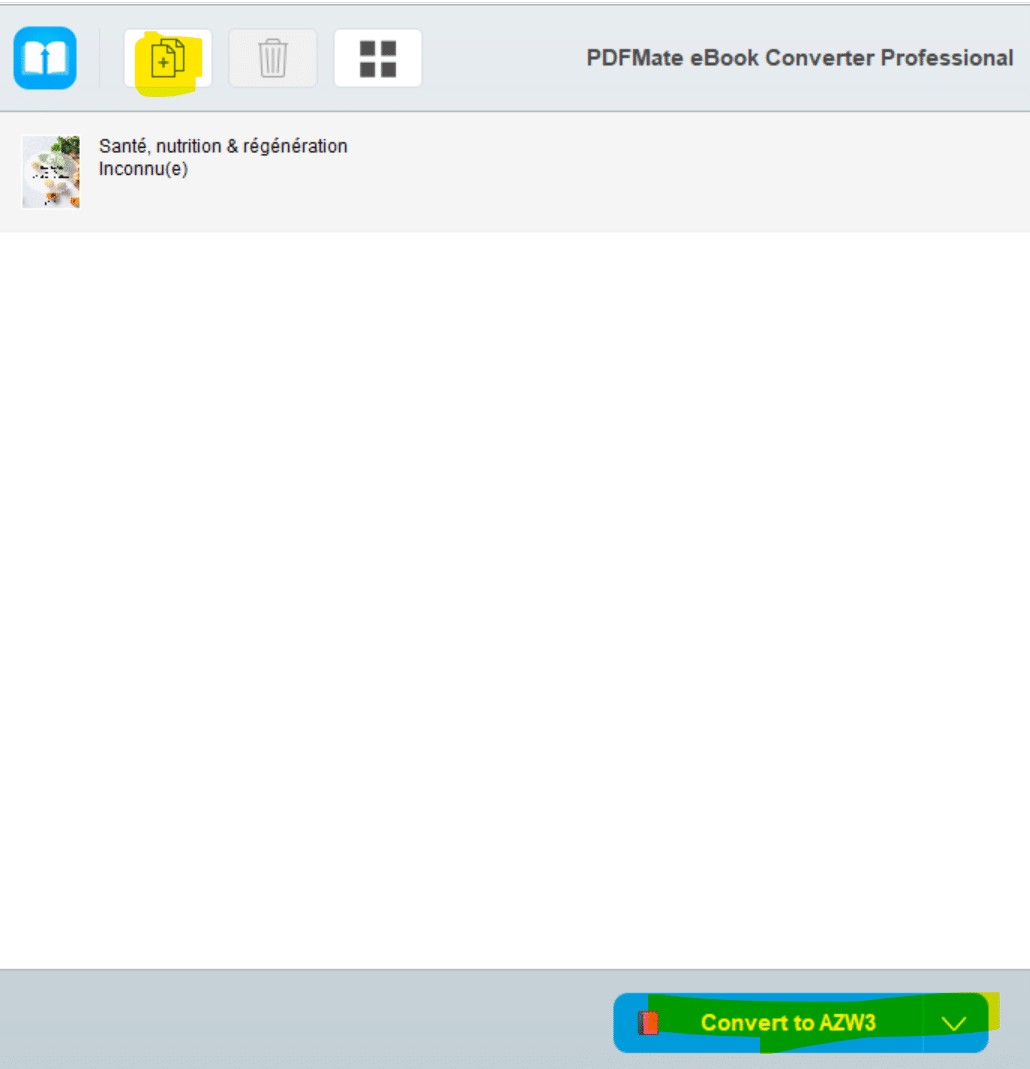
To convert PDFs to EPUB, I use the software PDFMate ebook Converter, which is free.
Let me let you compare the quality of an original PDF file (absolutely unreadable) and its epub format.
If you don’t have a computer, the simplest way to convert these hard-to-read formats into Kindle format is to send the ebooks to your Kindle library.
How to import ebooks onto the *Kindle library*?
As explained, you can import your own ebooks locally (i.e., the ebooks will only be available on the Kindle app on your computer, or on the Kindle e-reader). But what I like is having all my books synced and available everywhere. For that, it’s necessary that all books be in my Kindle library. Let me explain: If the books are in my “Kindle library” and linked to my Amazon credentials, I can read a book on my smartphone and pick up the same book on the same page on my tablet or Kindle e-reader.
I hope my explanation is clear.
To upload your own ebook (one you bought elsewhere or that someone shared with you), it’s very simple.
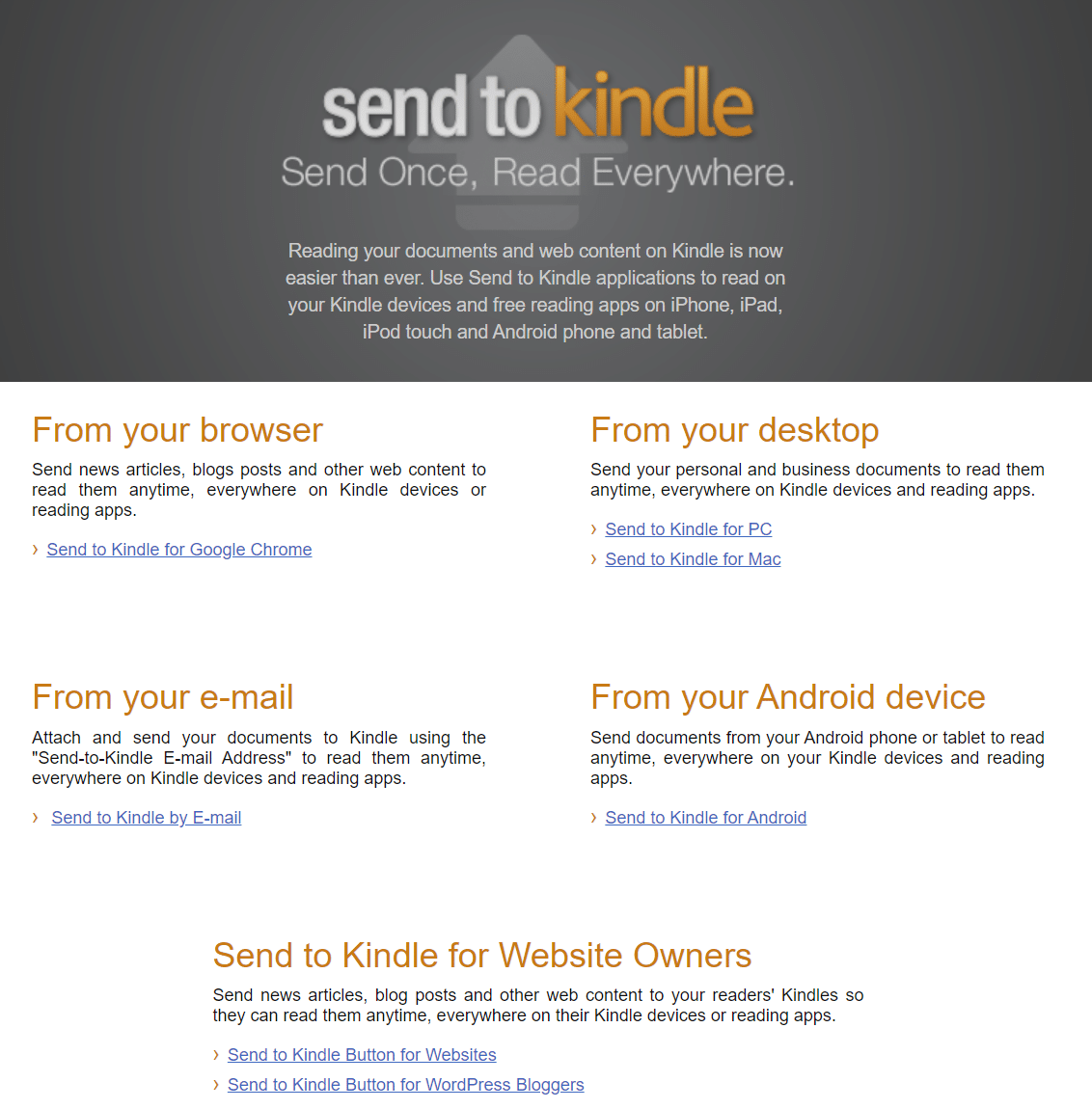
- From any device: you can email your books to an @kindle.com address created specifically for you. Your approved email address allows you to send the following file types:
- HTML (.HTML, .HTM)
- RTF (.RTF)
- Text (.TXT)
- JPEG (.JPEG, .JPG)
- GIF (.GIF)
- PNG (.PNG)
- BMP (.BMP)
- PDF (.PDF)
- EPUB (.EPUB)
- Learn more about Kindle emails here
- From your computer:
- you can use the “Send to Kindle” extension on Google Chrome to turn any article or website into a “Kindle book” and it will be available in your Kindle library
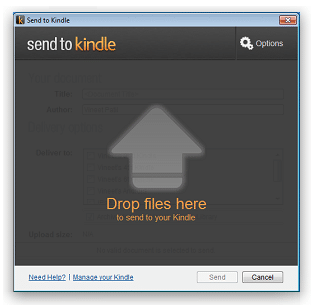
- you can use the Send to Kindle app to send any file to your Kindle library
- From your smartphone:
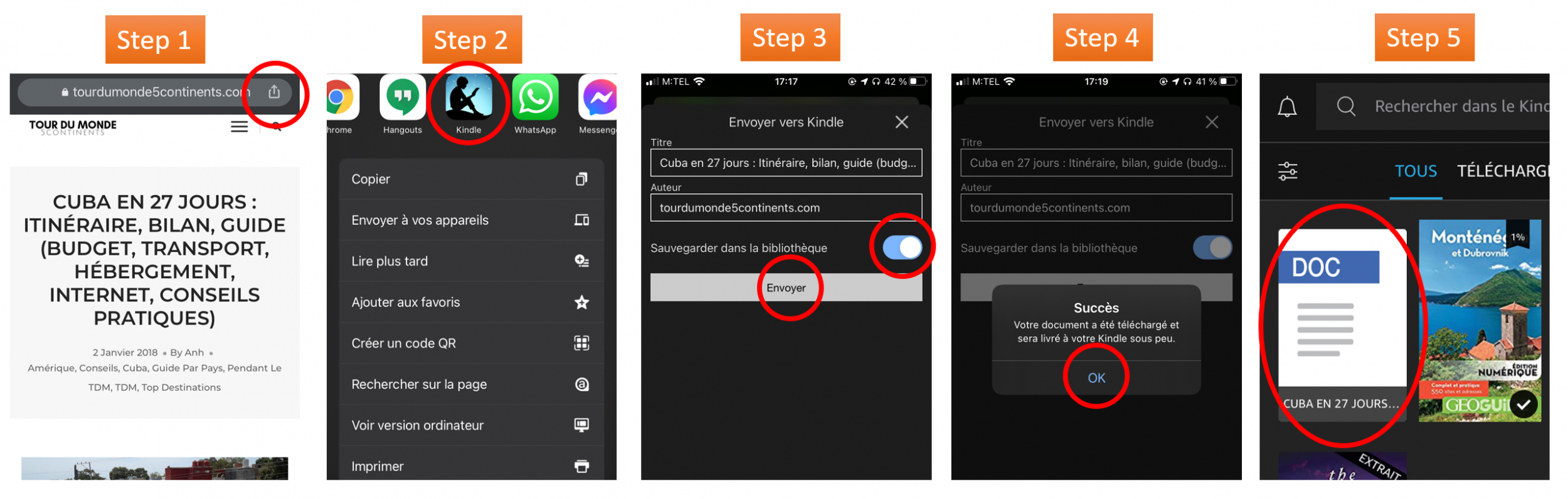
- download the Kindle app. As soon as you read an interesting article or post, click on “share” then select the Kindle app. The article in question will be converted into a “Kindle book” and will be available in your Kindle library.
- likewise, by opening a PDF or DOC file on your smartphone, you can also click on the “share” button and then choose the Kindle app. The document in question will be converted into a “Kindle book” and will be available in your Kindle library
For example, there are several “how-to” articles on our website Tour du Monde 5 Continents. You can turn these how-to guides (from your browser) into Kindle format to read offline later, in just 4 clicks.
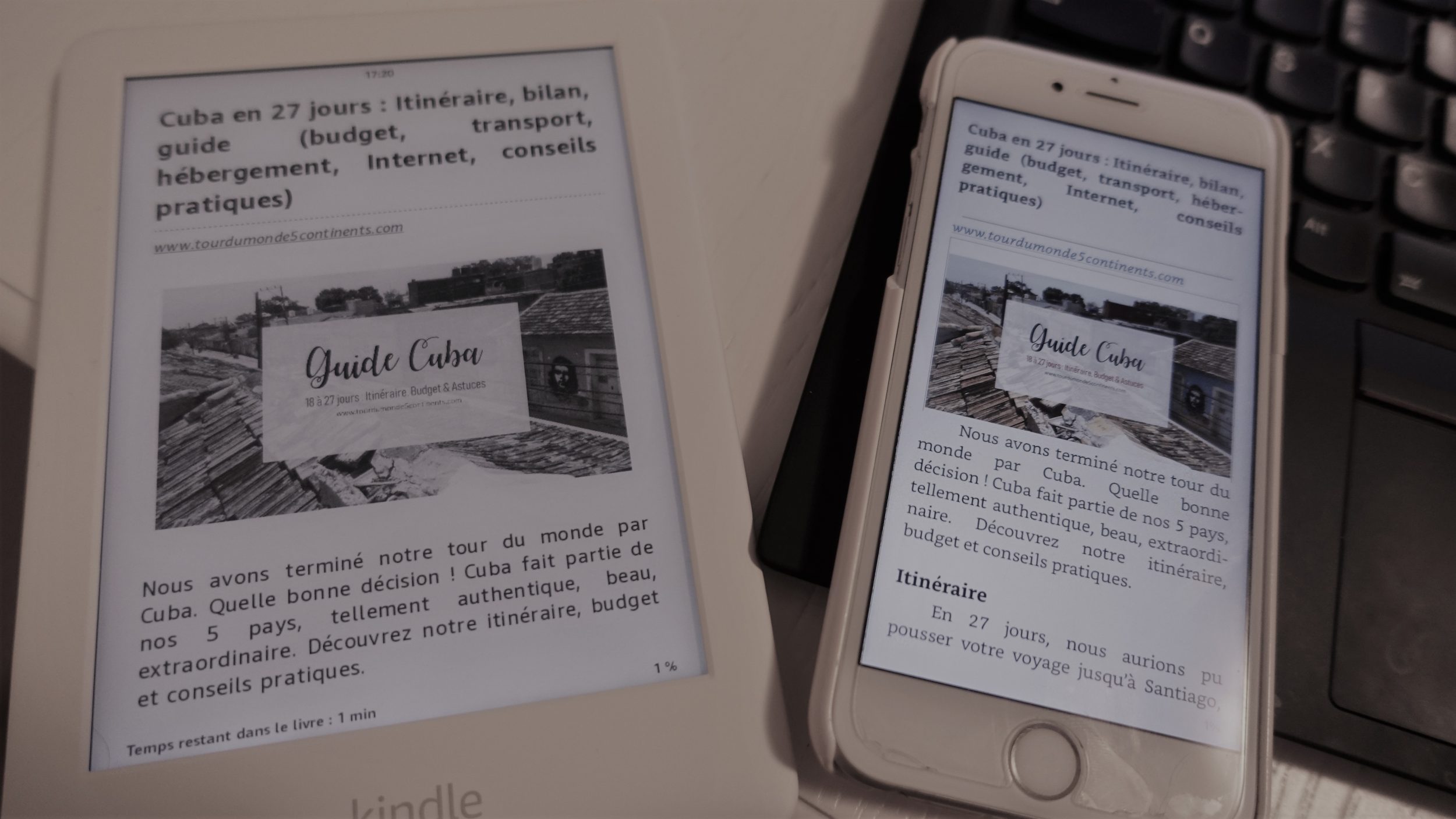
Tadam! The article is available offline on my Kindle & my Kindle app. This is particularly useful, especially for Cuba where there’s no 3G 😀
5. You can import Kobo and Google Play ebooks onto Kindle
Yes, it’s completely possible. If for any reason you can’t find your book on Kindle (it’s quite surprising but why not) or the book in question is cheaper on Kobo or Google Play, you can export these books.
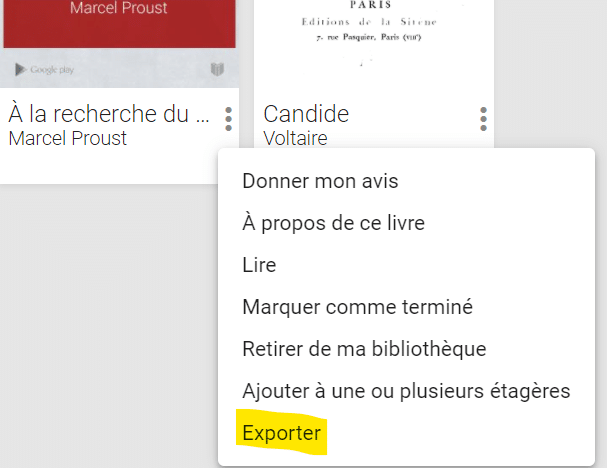
The export formats offered will be PDF or ePub protected by DRM.
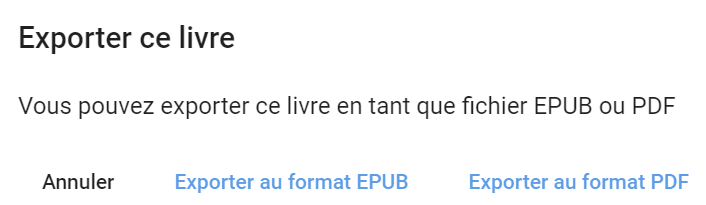
If it’s PDF, we saw above how to export them to Kindle format.
If it’s a DRM-protected ePub, you’ll need to use Adobe Digital Editions (free) to open the file in ePub or PDF format. Then use PDFMate ebook Converter (free) to remove the protection and recover the ePub. It’s doable, it sounds a bit long explained like this but I swear it works and it’s easier than it looks 😀
6. The Kindle e-reader comes in versions with and without ads
You’ve probably looked at the Kindle’s product page and wondered which one to choose. The version with ads costs $10 more than the ad-free version.
I bought the version with ads (Amazon link) (the ad-free version isn’t available for two months). Actually, the ads aren’t annoying because you only see them when the Kindle is in sleep mode.
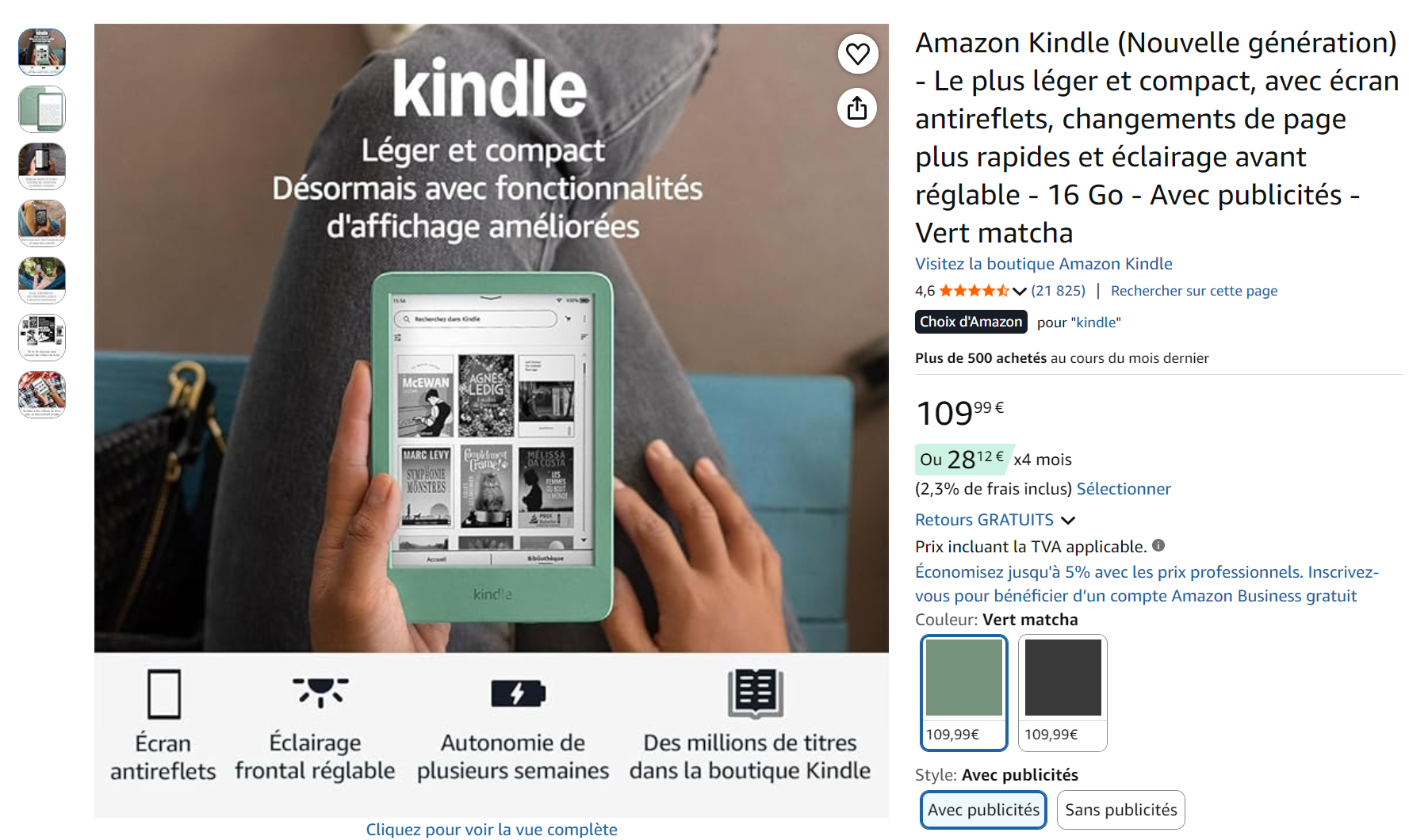
But if it really bothers you, you can easily turn off ads later by going to your account and paying an extra $10. Here’s how:
- Go to Manage Your Content and Devices.
- Select Devices.
- Select the Actions button to the left of the device’s name.
- Go to Special Offers, then select Edit.
- Follow the instructions to unsubscribe from Special Offers. The one-time fee is shown before you confirm your decision to unsubscribe.
7. You can read a book excerpt for free
Let’s go back to our example of Pride and Prejudice.
On the book’s product page on Amazon, you’ll see a “Look Inside” button.
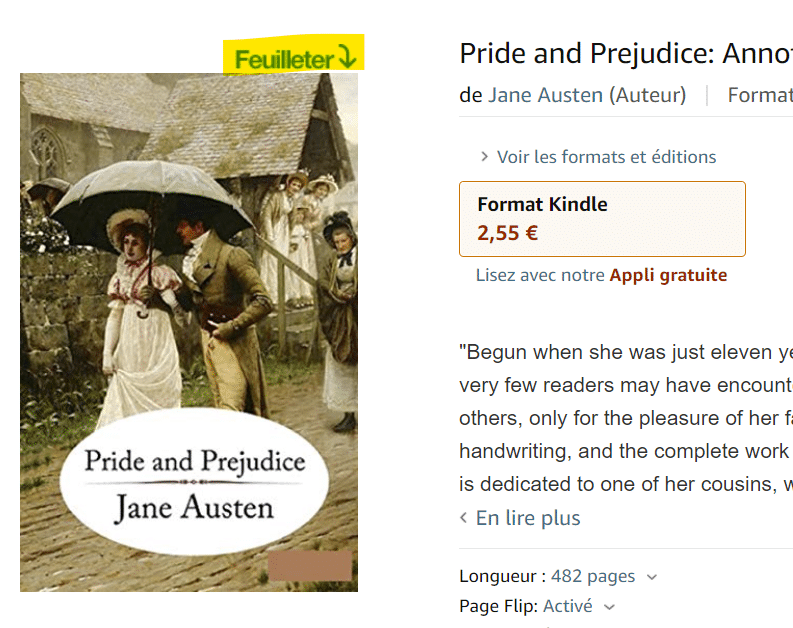
You can click on it and read the first few pages in your browser.
But if you use the Kindle app or the Kindle e-reader to search for books, you’ll see a button to get the sample. And it’s much more pleasant to read that way.
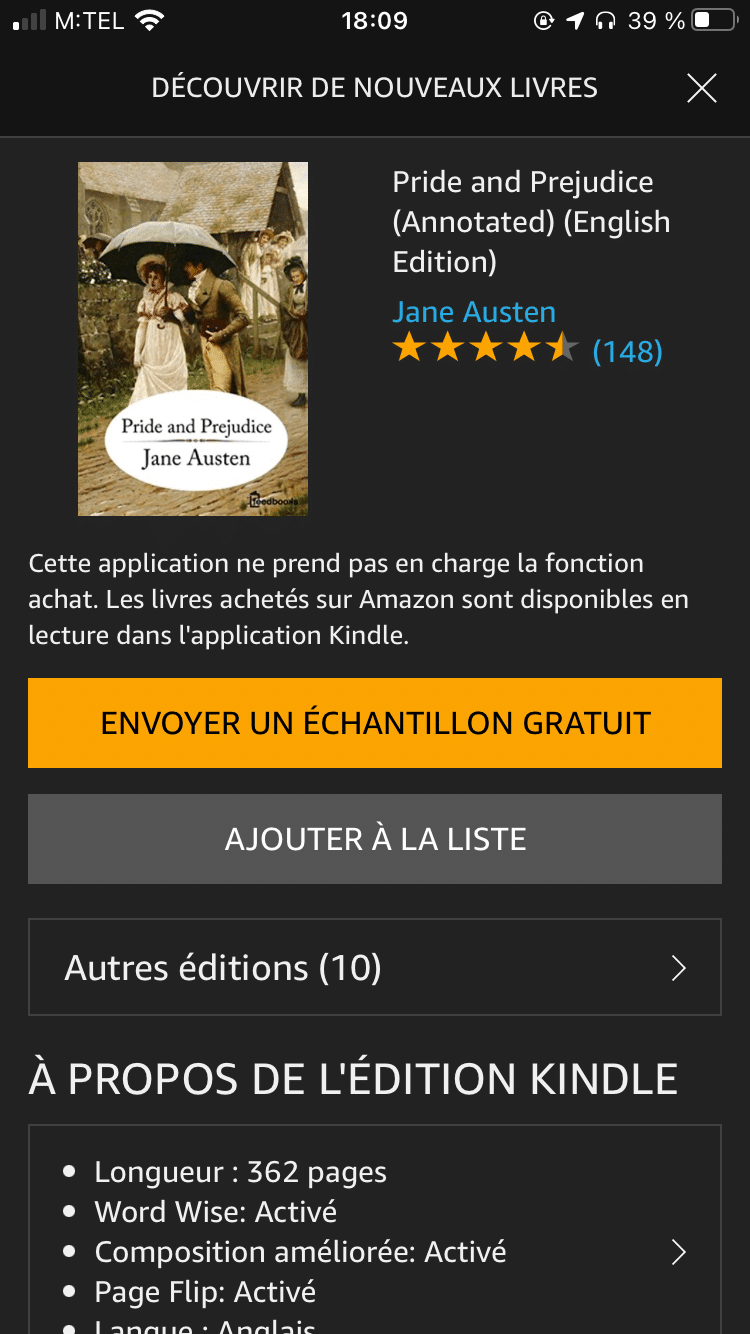
That’s what I do with travel guides. The sample often stops right after the 7-day/14-day itineraries (i.e., the part I’m interested in). And since I don’t really need detailed explanations, and I’m more into “top 10 places not to miss in country X,” I end up buying very few guides.
If at the end of the sample, you want to buy the ebook, you can do so from the Android app, from the Kindle e-reader, but not from the iOS app or computer apps because it’s a matter of in-app purchase fees for Apple or Windows.
8. You can return a book up to 14 days after purchase
Sometimes the sample is great, but after buying the whole book, you realize the rest doesn’t live up to it. So what do you do when you’ve already paid Amazon for the whole book?
Don’t worry, Amazon is an American company, and in English-speaking countries, consumers like to be able to exchange and get refunds. The terms are less strict than in Europe. So even if you’ve bought the ebook and read part of it, you can still return it up to 14 days after purchase.
- Go to Manage Your Content and Devices.
- In Your Content, select the Action button next to the title you want to return, then Return for a refund.
- In the pop-up window, choose the return reason (any one), then select Return for a refund.
They usually refund within 10 minutes.
9. You can lend your ebooks
Even though ebooks are virtual, you can lend them.
The Kindle Book Lending feature allows users to lend digital books purchased from the Kindle Store to their family and friends. Each book can be lent only once, for a period of 14 days. During this period, the ebook is inaccessible to the original buyer. Also, the lending feature is only available for Kindle books purchased on Amazon
Some publishers like Lonely Planet don’t accept book loans.
The person borrowing the book must accept the loan, otherwise your book will automatically return to you within 7 days.
Since JB and I live under the same roof, we use a single Kindle account on all our devices so we both have access to our Kindle library. If JB and I read the same book at the same time, I disable page & note sync on all devices, so JB won’t be disturbed by my notes and highlights.
10. You can update your book for free
If a book you purchased has a new edition (often to fix bugs, layouts, or spelling errors), Kindle will offer you the new version for free, without losing any notes or highlights you’ve added. To do this, go to your account on Amazon and look for books marked “update”.
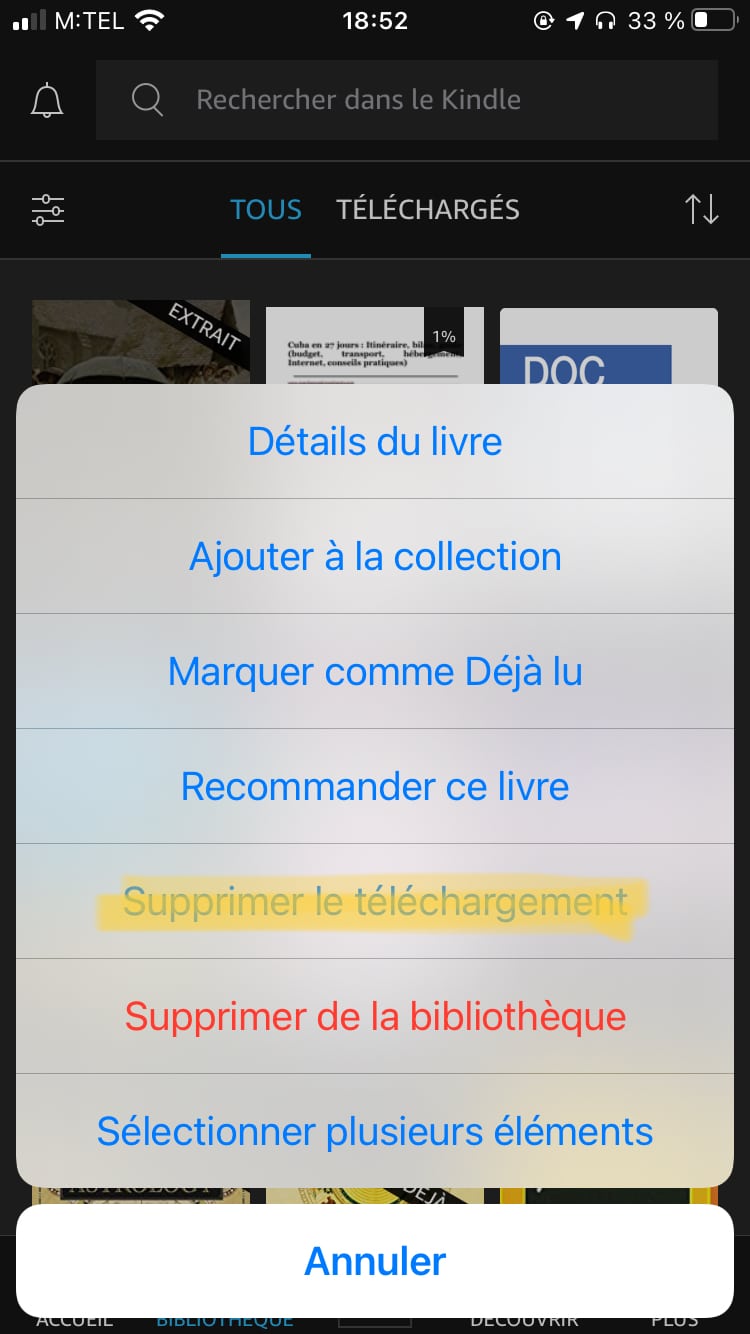
If you’re on the Kindle app or e-reader, Kindle will prompt you to delete the book from your device and re-download it. Be careful to choose Remove from Device , and NOT from the library.
Well, I hope this article has been useful to you. There are still plenty of hidden features (Audible, Bluetooth…), so don’t hesitate to leave a comment if needed.
I really like Amazon’s ebook services. I enjoy reading books in their original language and I like having access to an international inventory. Reading ebooks allows me to read a lot without lugging around 10,000 paper books around the world. If you want to know more about Kindle, read my detailed review here
I also explained here how to get Audible books for cheap.

