6 Exclusive Features of the reMarkable Paper Pro
I’ve listed 26 features of the reMarkable 2 here, which also apply to the reMarkable Paper Pro. However, thanks to its more advanced hardware, the reMarkable Paper Pro offers some exclusive features. I’ll present them to you here.
1/ Sleep & Wake with a Magnetic Folio
This feature was already present on quite a few e-ink readers, but it’s only now making its appearance on the reMarkable Paper Pro. Using the brand’s official magnetic folios, or even some compatible models (like this one on Amazon), you simply close the folio and the tablet automatically goes to sleep. And when you open it, it wakes up immediately.
No more pressing the power button 1000 times, risking damage to it. Honestly, I find this feature super handy.

2/ Brushes & Colors
With colors, reMarkable allows you to use 9 colors for different brushes.

The Shader brush is absolutely useless on the reMarkable 2 but makes perfect sense on the reMarkable Paper Pro. It’s a brush that allows you to layer multiple colors and create shades.


3/ Auto-Rotate
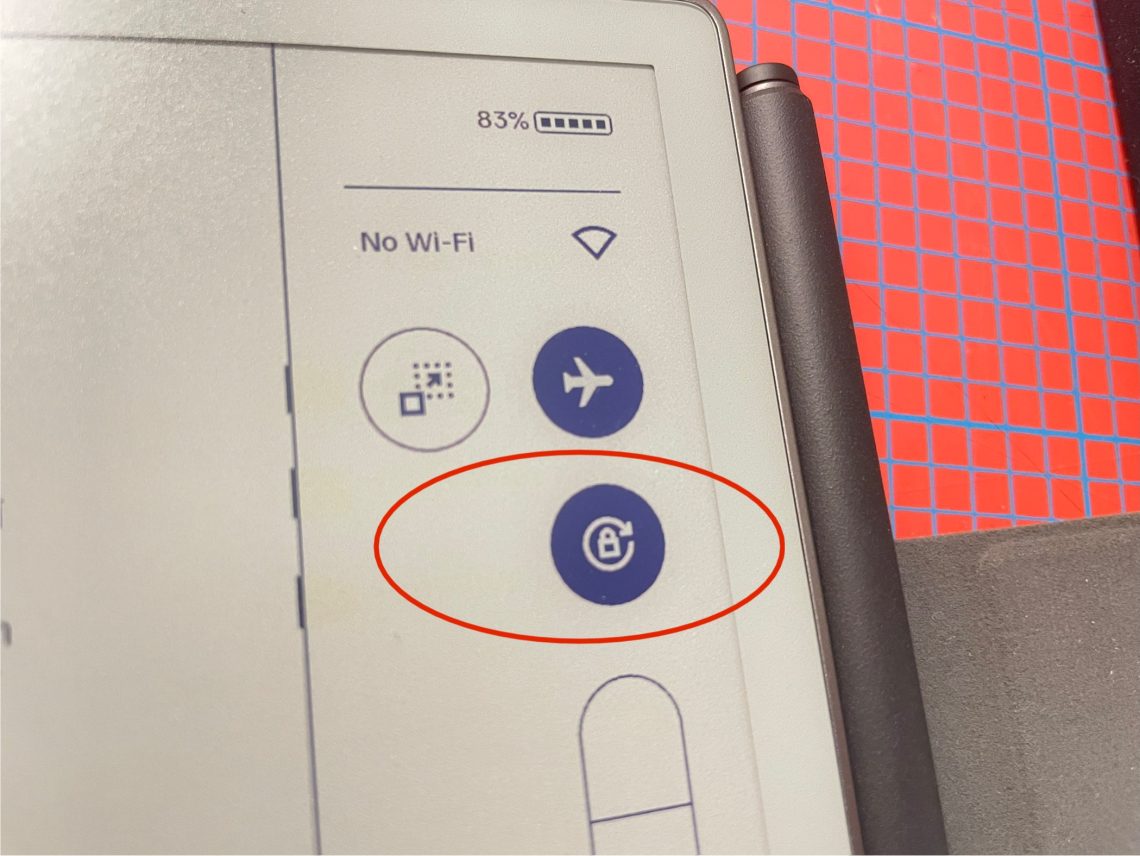
As on smartphones or tablets, rotating the tablet will automatically rotate the document. You can disable auto-rotate by swiping your finger on the top right corner (from top to bottom) and turn it off.
4/ Front Light
You can also adjust the light intensity by swiping your finger on the top right corner (from top to bottom).

If the max light is too dim for you, you can switch to “super light” mode (2.4x brighter). To do this, go to Settings > Display to enable “super light” mode. Be careful, this mode can drain the battery faster and wear it out sooner.

5/ Automatic Charging of the Marker
The reMarkable 2’s stylus has no battery, but the reMarkable Paper Pro’s does.
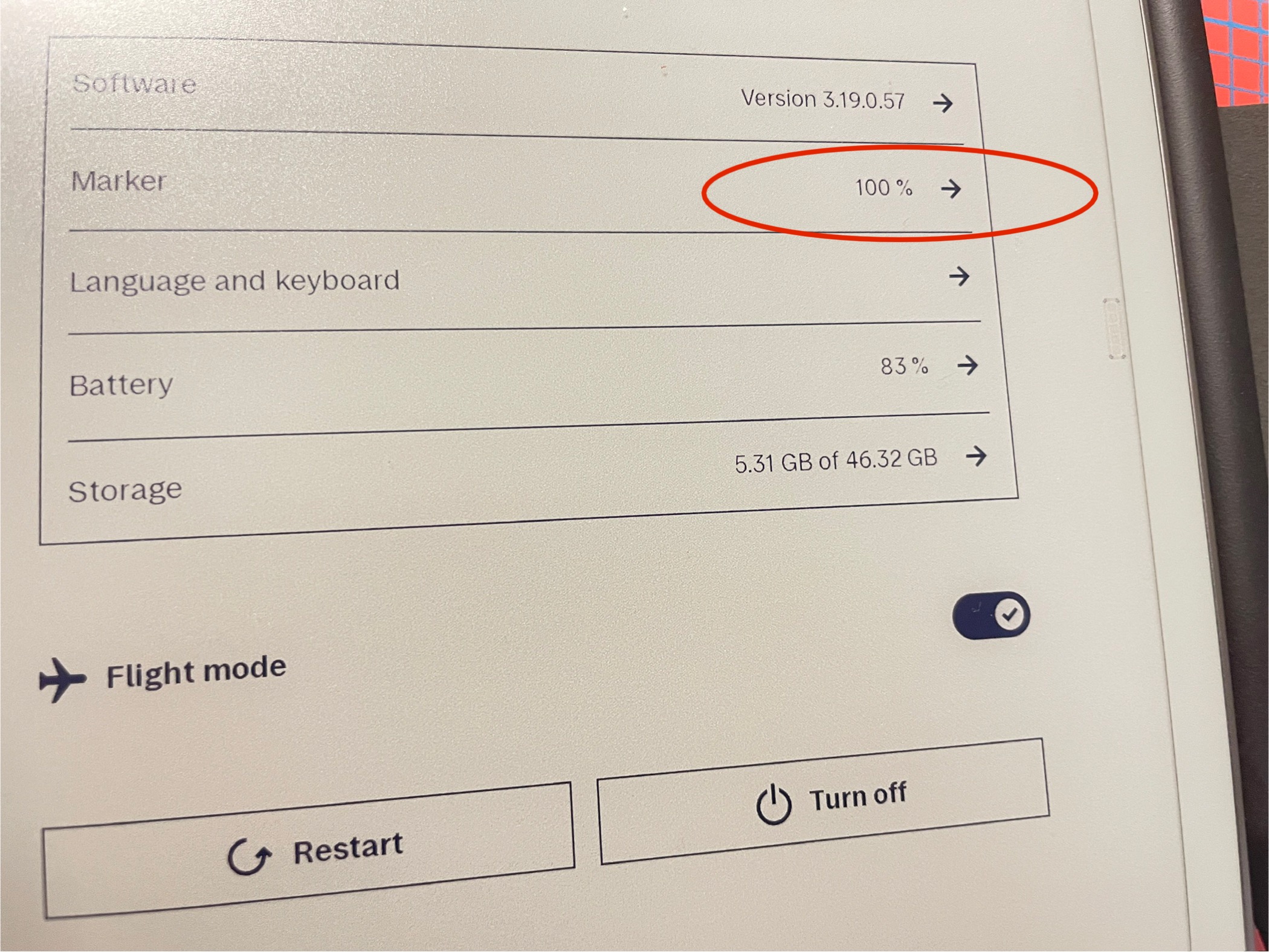
By opting for an official stylus (Marker or Marker Plus), you can magnetically attach it to the right side of the tablet, and it will automatically recharge when stored there. You can check whether it still has battery by going to Settings. Sometimes, the markers also receive updates. In that case, the tablet will notify you, and you need to leave it in place for at least 4 minutes.
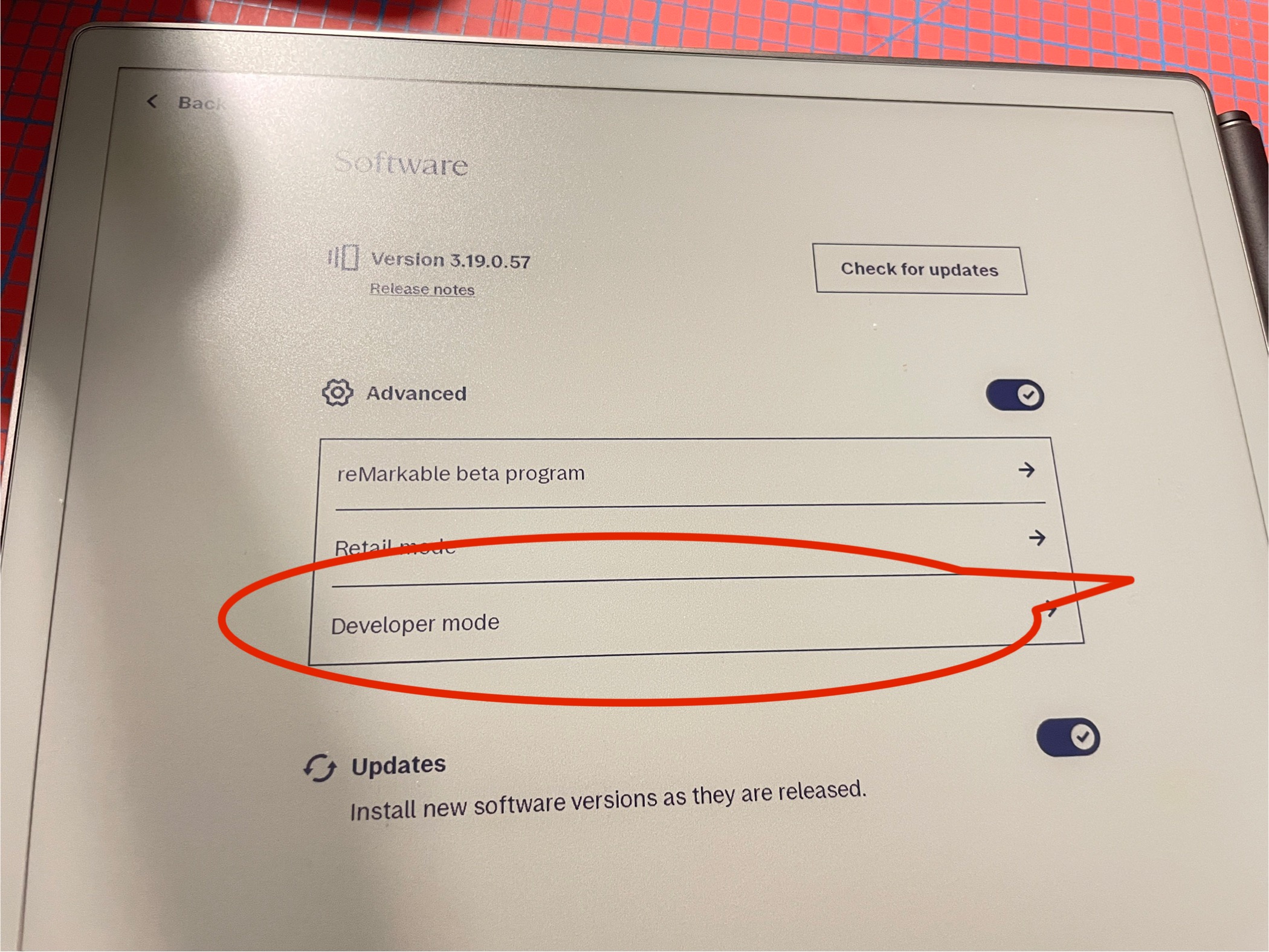
6/ Developer Mode
While you can access the reMarkable 2 via SSH by default, on the reMarkable Paper Pro, you must explicitly indicate that you want to access via SSH by enabling Developer Mode. If you enable this mode, the tablet will do a reset (you won’t lose your files if they’re already in the cloud). Be aware that when in Developer Mode, you can’t easily disable it. You’ll need to do a hard reset to exit it. Developer mode allows you to hack the tablet a bit 🙂
reMarkable Paper Pro user manual in French
As usual, I’ve volunteered to translate the reMarkable Paper Pro quick start guide into French. You can download it here (PDF file).

