

[Review & Verdict] reMarkable Paper Pro, colors at a premium
The reMarkable Paper Pro came out in September 2024 and I want to give you an honest review, just like I did for the reMarkable 2, but I wanted to wait for the bug fixes, software stability, and faster shipping before taking the plunge and getting one for myself. And here it is, the long-awaited article, with a little reMarkable 2 vs. reMarkable Paper Pro comparison in case you’re torn between the two.
I want to clarify that I have no affiliation with reMarkable. I bought this tablet with my own money.
The pros of reMarkable
reMarkable sells tablets with an E ink screen, designed for note-taking, drawing, reading, and annotating books and documents. It’s like a paper notebook, but digital. The reMarkable Paper Pro is their latest version (released in September 2024).
We’ve seen plenty of tablets with styluses, some with closed systems like Kindle, Kobo, others that work like a normal tablet (Boox, Lenovo…). But reMarkable still stands apart with its own Linux-based system, their vision, their niche, their innovations targeting ONE specific category of consumers.
To put it simply, others try to cram in as many features as possible, reMarkable aims for just one thing: paper, but better. Hence the obsession with (1) the paper feel (2) distraction-free.
Yes, the big advantage of reMarkable tablets is the “distraction-free” aspect. In a world full of ADHD, hyperactivity, TikTok, notifications, temptations… reMarkable doesn’t even show the time !!! I often find myself reading for hours on end and forgetting to sleep because I don’t even know what time it is. It’s rare these days to have tech tools as useful as a book yet as high-tech as an iPad. This tablet makes me smarter and has saved my memory! I read 10 times more since I bought it. Writing by hand, instead of typing, makes me retain information better. I keep saying it, but nobody understands what I’m talking about until they use it themselves.
Plus, you can access the tablet via SSH and geek out a bit. JB and I have created custom scripts to interact with our tablets, and in a world where young people can’t even type on a computer and don’t know what a tab is anymore, it’s essential to still have tools that make you want to geek out and create.
reMarkable is a niche product, for a very specific use case. So if you’re really on the fence (and I mean about features, not price—of course everyone hesitates when they see the price), it’s definitely not for you. If you’re part of the target audience, you’ll know right away.
| Aspect | Kindle or Kobo with stylus | reMarkable |
|---|---|---|
| Core purpose | Read ebooks | Write by hand + read |
| User experience | Long reading sessions, visual comfort | Paper-like writing experience + focus Long reading sessions, visual comfort |
| Target audience | Avid readers | Professionals, creatives, students |
| Strategic evolution | Tied to Kindle / Kobo ecosystem | Independent, focused on distraction-free productivity |
| Writing technology | Minimal, not very fluid | Highly developed, ultra-fluid, designed for writing. |
The main differences between reMarkable 2 and Paper Pro

Since all reMarkable tablets use the same software (reMarkable 1, 2, Paper Pro), whenever reMarkable releases a new tablet, it’s the hardware that changes. The big difference between reMarkable 2 and Paper Pro is the hardware: a larger screen, the addition of colors and a front light for Paper Pro, all with a new E Ink Gallery 3
| screen. | reMarkable Paper Pro | |
|---|---|---|
| reMarkable 2 | Colors | black and white eink color eink |
| Light | no light (front light) | with light (front light) – 5 light levels |
| Internal storage | 6GB | 64GB |
| Pen | battery-free pen, with or without eraser | pen with battery (but automatically recharged when you dock the pen to the side of the tablet), with or without eraser |
| Size | 246 x 188 mm | 274.1 x 196.6 mm |
| Screen | 10.3″ monochrome 1872 x 1404 px (226 DPI) | 11.8″ color 2160 x 1620 px (229 PPI) |
| Price | from €369 | from €649 |
| Weight | 404 g | 525 g |
Technology
For you to understand the limits and advantages of each reMarkable tablet, you need to know how each screen works.
reMarkable 2 and E Ink Carta
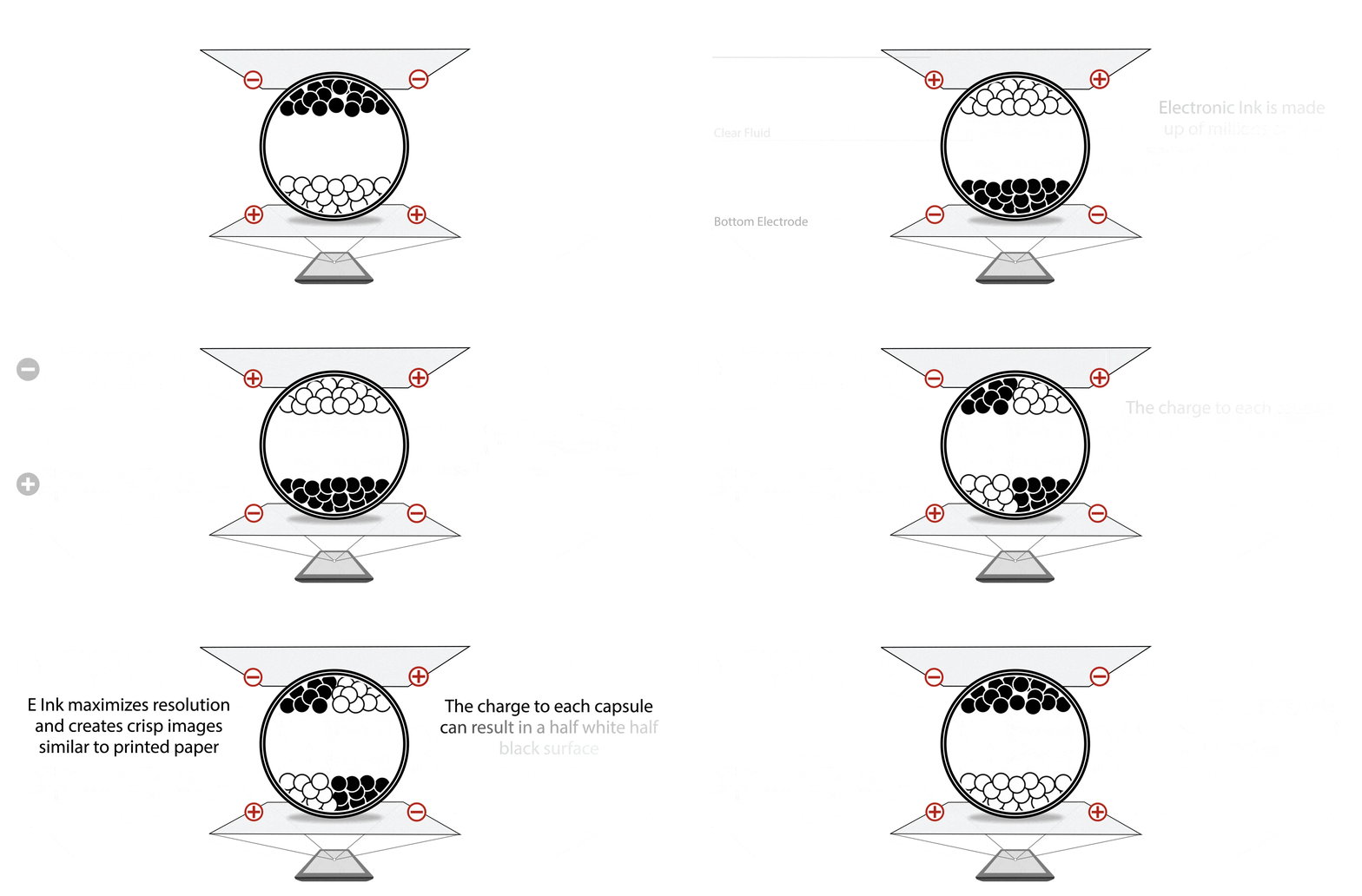
The reMarkable 2 is an e-paper display in black and white and uses the E Ink Cartatechnology. E Ink Carta technology relies on the principle of electrophoretic display, using millions of microcapsules suspended in a clear liquid. Each microcapsule contains negatively charged white particles and positively charged black particles. When an electric field is applied, these particles move: the black or white ones rise to the surface of the screen, making the pixel visible in black or white depending on the polarity of the field.
reMarkable Paper Pro and E Ink Gallery 3

The reMarkable Paper Pro, on the other hand, uses the E Ink Gallery 3technology, the most advanced color e-paper technology. This technology cost E Ink $10 million to develop. Very few tablets on the market are equipped with it.
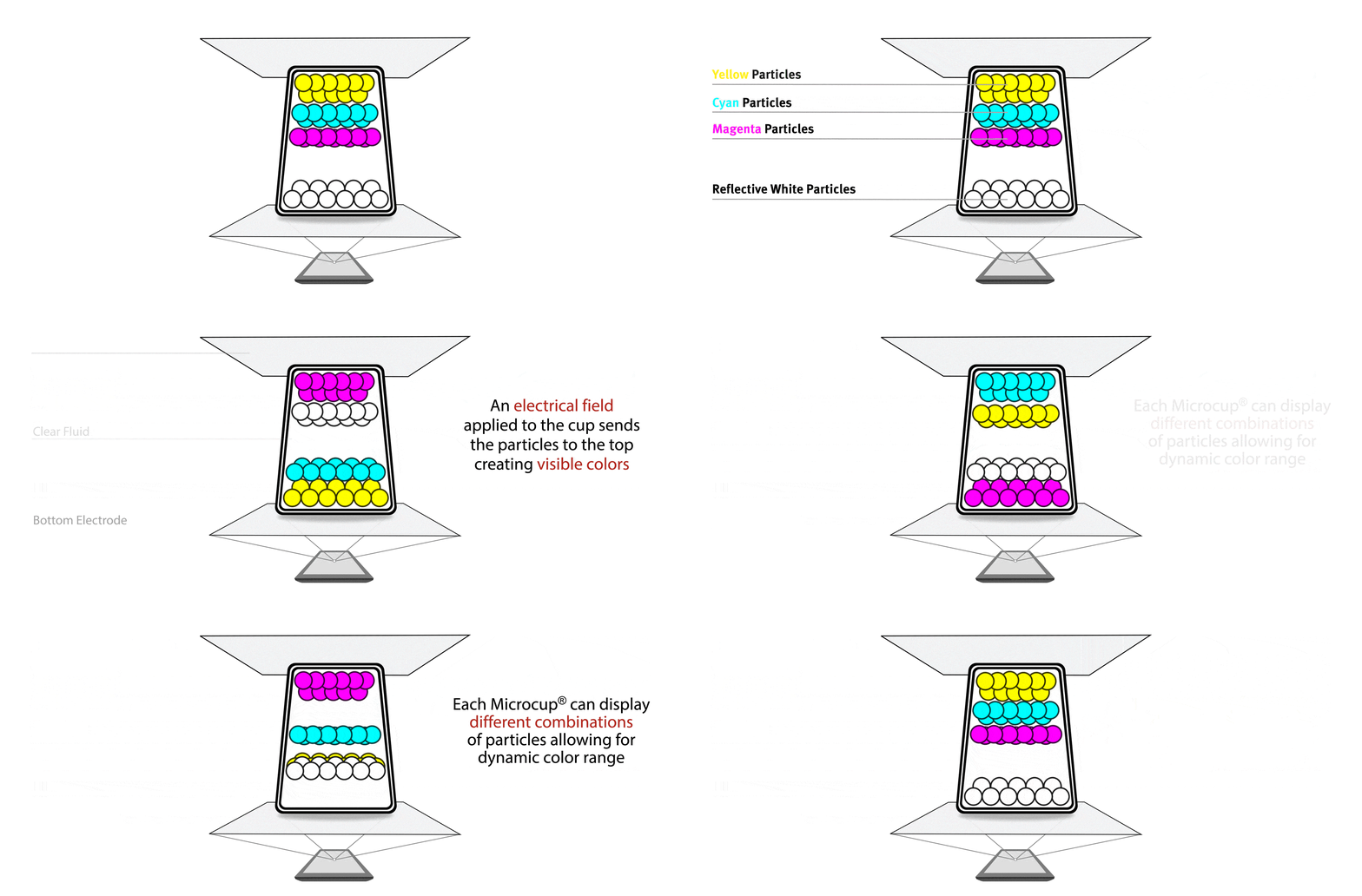
E Ink Gallery 3 is based on the E Ink ACeP™ (Advanced Color ePaper) platform. On this platform, a full range of colors is achieved through a four-particle ink system: cyan, magenta, yellow, and white, allowing each pixel to display a full spectrum of colors. If you have a color printer or do drawing, you know that with only cyan, magenta, and yellow, you can create a multitude of colors—in this case, 20,000 for the reMarkable.

As shown in the animated GIF below: ACeP™ consists of Microcups® filled with four types of ink particles (cyan, magenta, yellow, and white). An electric field applied to the Microcups sends the particles upward, creating visible colors. Each Microcup® can display different particle combinations, enabling a dynamic color gamut.

Therefore, it is impossible to convert a reMarkable 2 to a color version because the difference is physical. The reMarkable 2 does not have color Microcups, so you necessarily need to upgrade to the Paper Pro to enjoy colors.
Why the reMarkable Paper Pro is not like the Kobo Clara Colour

If you’ve seen a Kobo Clara Colour in a store, you’ve probably noticed that its screen looks dark and the colors lack vibrancy. The reason is technical: Kobo uses the E Ink Kaleido™ 3 technology with a color filter array placed over a black-and-white electronic ink layer. This filter divides each pixel into red, green, and blue (RGB) sub-pixels but blocks some of the reflected light, making the image darker. This filter cannot be removed, which results in more ghosting and less sharpness, since you can’t display pure black or pure white.
The Kobo offers 4,096 color shades, while the reMarkable Paper Pro offers 20,000 and benefits from a brighter screen thanks to E Ink Gallery 3 technology. So the reMarkable Paper Pro uses a newer version than the Kobo.
As of now, reMarkable is the best color e-paper tablet on the market : the best technology, and thanks to its innovations, it offers a much brighter and more responsive screen than other tablets using Gallery 3.
E Ink Gallery 3: A black that is bluer than black
However, despite this technical superiority, the colors of the Paper Pro remain pastel. 20,000 shades will never be comparable to the millions of colors of an LED screen.
And since Gallery 3 creates black from CMY, the black you see is more of a very dark blue than true black (that’s why our color printers use a black cartridge to produce true black instead of creating black from CMY color inks). But E Ink Gallery 3 doesn’t include black particles for us (I told you that progress in e-paper moves at a snail’s pace).

For very sensitive eyes, the lack of true black might affect reading comfort. There is a contrast filter that you can enable or disable as soon as you open a file. It makes text easier to read but darkens the colors a bit. So if a page contains both text and images, you’ll need to choose among 3 modes to get more vivid colors or better text readability. Below are the 3 contrast modes; you can choose the one that suits you best for each file. On a highly colored PDF, here’s what it looks like:


Here’s a screenshot of the PDF in question on a computer:

It’s not reMarkable’s fault so much as the company E Ink, which holds a monopoly on this technology and isn’t pushed to innovate as quickly as, say, OpenAI.
reMarkable has nonetheless worked to customize this technology, particularly to improve latency, which is why compared to other devices using the same technology, it doesn’t perform the same as reMarkable.
The resolution
The reMarkable Paper Pro’s screen is larger than the reMarkable 2, but the DPI only goes from 226 to 229 DPI (even though the technology supports up to 300DPI, I don’t know why they didn’t max it out). If you’re used to the sharpness of Kindles, you’ll find this 229 DPI resolution pretty average. It’s fine for black and white text, but with colors, when you zoom in it looks something like this.

On a file without colors, the resolution is acceptable:

However, some reMarkable users point out that pixelation isn’t always related to the DPI count. “The pixels you see when writing aren’t due to a resolution limit (DPI), but to the way the writing is displayed on screen. What we perceive as ‘staircase steps’ or a pixelation effect mainly comes from a lack of anti-aliasing, not the pixel density itself.” What is anti-aliasing? It’s a graphics technique that involves visually smoothing edges by adding intermediate, slightly gray or blurry pixelsto give a sense of fluidity. Imagine a pen stroke that, instead of having jagged edges, would be gently blurred on the sides to appear smooth, even at low resolution. The problem is that this method works well for black & white, but not for colors: for good anti-aliasing, you need to be able to display intermediate shades between two colors. But well, we’ll see if reMarkable’s developers manage it via their software in the future, but right now, it’s not quite there. JB finds reading magazines & comics on the Paper Pro a pain due to the pixelation.
The paper feel?
1/Latency
Latency is the delay between when the pen touches the screen and the appearance of the ‘electronic ink’. To mimic the paper feel, this latency must be almost non-existent.
For the reMarkable 2, latency is 21ms whereas for the reMarkable Paper Pro, it’s 12ms !!! It remains the best on the market.
2/ The tactile feel
The second essential condition for reproducing the paper feel is the tactile sensation when the pen ‘scratches’ the screen surface. If the pen glides too easily, you have to adapt how you write or draw.
While the reMarkable 2 offers this sensation from the first use, with the Paper Pro, the paper feel isn’t immediate. I suspected as much and already discussed this exact point in my article about the reMarkable 2. Since current technology requires a darker screen for color e-ink, you inevitably need to add a light layer; and where there’s light, there’s glass. Because of the front light, the screen is glass and slicker than that of the reMarkable 2 (while still being much more textured than an iPad’s).
The pen nib is harder and slips too much on the new screen. After a few weeks of use, the nib wears down slightly and finally offers that resistance reminiscent of writing on paper. The advantage of a harder nib is that it wears out less quickly. Personally, I’ve pulled out my sandpaper, and the paper feel improves immediately; but it still doesn’t match the paper feel of the reMarkable 2. But you still get the little sound of the pen scratching the screen.
- Writing with the reMarkable Paper Pro is like writing with a Bic pen on an A4 sheet placed on a table.
- Writing with a reMarkable is like writing with a fountain pen in a notebook. So, the reMarkable 2 remains superior in terms of paper feel, it’s important to point that out.
Tip: Lightly file the tip of the pen as soon as you take it out of the box for a better paper feel. A 600-grit sandpaper will do the trick.
A color screen that could use some work
A flicker when writing in colors
The biggest downside of the Paper Pro shows up when you write in color. The ink first appears in navy (13ms latency), then there’s a “trail” in the color you want. When you finish your sentence, a flicker happens on the part you just wrote, and the real color finally shows up (as the cyan, magenta, yellow, and white layers settle into place). It all happens in a few hundred milliseconds, but it’s clearly visible to the naked eye.
This also happens when you highlight text. You see the black color first, then the yellow highlighter follows behind the black, like watercolor. The screen flickers as soon as you lift the pen, and everything becomes the color you chose.
On the other hand, in black and white on the Paper Pro, no flicker is needed; the screen doesn’t require a refresh.
Is it annoying? For reading, not at all, because the screen only flickers during page changes (like all eInk). However, if you exclusively write in color, the screen will flicker at the end of every sentence, which can get irritating. For me, color highlighting brings real visual satisfaction, even if each stroke ends with that characteristic little flicker.
Is it reMarkable’s fault? No, it’s inherent to the technology. This isn’t an LED screen; it’s a screen with physical particles that move and take time (around 300 milliseconds, visible) to settle. To ensure near-zero latency, reMarkable’s solution is to display the dark navy color and “run” the true color behind the navy, before doing a “flash” to lock in the color.
Yellow ghosting
It seems like with some devices, the yellow particles like to linger on the surface a bit too much. Several people have reported yellow ghosting after turning a page, and you need to refresh to get those yellow particles to settle. Or the entire screen turns yellow (due to inconsistent quality from the eink screen supplier). If this happens to you, know that it’s not normal; contact ASAP support and ask for a replacement. You have 100 days of free returns and a 3-year warranty.
Three years ago, when I first discovered color eInk, I honestly thought the technology would have made giant leaps by 2025. I have to admit that’s still not the case. Even with the best technology on the market, Eink Gallery 3 still shows visible shortcomings. But in my opinion, there’s no point in waiting for 2026, or 2027… this technology advances very slowly (due to the monopoly, and R&D is focused on AI right now). Despite all these flaws, reMarkable Paper Pro remains the best color eInk out there, so… either you accept the limitations of this new technology, or you stick with black and white.
Brushes & colors
There are 9 colors x 3 stroke widths for the standard “pens”

Then you have a “blender” where colors can be layered to create some pretty nice shades.

Here’s an example of a “shader” made by a user from the reMarkable users Facebook group:


The highlighter, on the other hand, has 6 colors.

Here are the various brushes & colors. With or without frontlight—in a fairly dark part of the apartment. Contrary to what you might read online, you can totally read in the dark with a light intensity of 5/5.


And the same page when exported as PNG. You can see that with shader, you can get multiple shades.

Brightness & the front light
A color eInk absolutely needs to come with a light because it remains a bit darker than a black-and-white screen. On reMarkable’s side, there’s only one color: yellow. And 5 light intensities. To be honest, there’s not much difference between the 5 intensities, so it’s like you can only do ON/OFF.
People are happy because they can read in the evening. The photos don’t do it justice—they look unreadable, but honestly, this light intensity is enough to read in complete darkness.
Recently (update 3.19), for those who find the tablet too dark, you can enable “super light” mode, i.e., increase the light by 240%. However, this mode will drain the battery faster and degrade it more quickly.

To let you compare the screen brightness vs. a white sheet of paper, I placed the reMarkable 2, Paper Pro, and a white A4 page side by side. Here are the screens WITHOUT light.

And here’s the Paper Pro with the front light on.

Without light, the Paper Pro is naturally darker than the reMarkable 2

To reach the same brightness as the reMarkable 2, you need to set the front light to level 2/5:

The pen

I opted for a pen with an eraser (Marker Plus, despite the extra €50), because I find pens without erasers impractical. reMarkable pens are exceptional. Their magnetic design fits the tablet’s curve perfectly, preventing you from losing them. The Paper Pro pen has a built-in battery, necessary for E Ink Gallery 3 technology, and automatically recharges when stored on the tablet’s right side. Because of this battery, it’s slightly heavier and wider than the reMarkable 2’s.
I know Amazon offers a pen compatible with Paper Pro but I’d advise against it because you’ll have to remember to charge the pen yourself. Plus, reMarkable pushes updates to its official pens. They have a higher sensitivity level than non-official pens.
I’ve noticed many people store them incorrectly. The tip needs to face down.
As I was saying, this new reMarkable pen’s tip is harder than the reMarkable 2’s, but that means it’ll last longer. At the same time, I don’t change reMarkable 2 tips that often. You’ll notice the replacement tips now come in a super stylish box.
Note that reMarkable 2 pens aren’t compatible with the Paper Pro due to technological differences.
The keyboard
The reMarkable 2 keyboard won’t be compatible with the reMarkable Paper Pro either. I’ve never used the reMarkable keyboard because I don’t feel the need, but I’ve heard quite a few positive reviews.
Note that the reMarkable 2’s Type Folio isn’t compatible with the Paper Pro due to the size difference.
The battery
Because of the light, the Paper Pro’s battery (5,030 mAh) can drain faster than the reMarkable 2’s (3,000 mAh). Plus, that same battery has to power the pen. But it’s not an issue since I can still use it all day. And if the battery dies, I can keep using it while charging (just be sure to charge via a computer to avoid overheating).
The finish
It goes without saying how stunningthe reMarkable Paper Pro is. The quality is Apple-like. Even though the Paper Pro gained a few millimeters in thickness, it’s still very slim. Everything about it is beautiful, including the packaging & packaging design. I’ll let you watch the unboxing video to see this company’s attention to detail.


My use
Besides all the uses I’ve already mentioned in my other article on the reMarkable 2, adding color lets me:
- Read colored content (ideally black & white text with a few colored graphics here and there)
- Better see my color highlights, which makes reviewing much easier
- Design my leather bag designs with colors
- Use both tablets in sync: I read on one and take notes on the other, with all my documents synced between the two devices, since I use the same my reMarkable account on both
- Pixelation makes reading tiring for full-color magazines & colored comics, but theoretically it’s possible (though I don’t recommend it)
- On scans of illuminated manuscripts, I redraw over the patterns by hand to get a vectorized layer. Here, I’m working on the scrollwork of the manuscript Les Belles Heures du duc de Berry with my reMarkable Paper Pro, to get a printable, editable digital pattern.
The pros/cons of the reMarkable Paper Pro
The pros
- The best e-ink technology color eink on the market: 20,000 color shades, and less dark than other color screens
- Distraction-free experience
- A larger screen
- SSH access to create your own scripts
- A writing experience close to paper
- A clean, elegant design
- Many manual gestures to speed up the workflow. All these gestures are clearly explained when you first set up the tablet.
- Regular software updates, no planned obsolescence, even older tablets (reMarkable 1) still get updates to this day.
- You can use the same my remarkable account on multiple devices. Personally, I have the same docs on both my reMarkable 2 and Paper Pro.
- The tablet wakes up automatically when you open the magnetic folio (whereas you have to press a button on the reMarkable 2).
The downsides
- The high price (but I’ll talk more about that later).
- Paper-like feel is inferior to that of the reMarkable 2.
- The weight, over 500g, gets quite heavy to hold with one hand.
- DPI of only 229.
- reMarkable 2 accessories are not compatible with the reMarkable Paper Pro, so you have to buy everything again.
- Gallery 3 eInk technology still has some technical drawbacks: flickering with each addition of color, a screen that’s slightly darker than a black-and-white screen (but quite bright compared to Kobo & Cie.), pastel colors, and a black that tends to be more blue.
- The following drawbacks are not specific to Paper Pro but to all reMarkable tablets:
- The menu is only in English. I mean, you only need a very basic level of English to understand the menu, but I can see how it might bother some people.
- Like all reMarkable tablets, you need a Connect subscription to access more advanced features but personally I don’t really use those advanced features much (first year free, then €2.99/month).
- You can’t fully sync your docs with Google Drive/Dropbox. Basically, you access the drives to download files to the tablet, then you re-upload the files to those drives—it’s not true synchronization. However, the reMarkable cloud provides real syncing.
- No direct compatibility with Kindle, Kobo, Google Play, etc. You need to download DRM-free (unprotected) books and put them on the tablet in epub or pdf format. I’ve already explained here how to remove DRM from Kindle and for Kobo it’s really easy, but I understand that some people might not feel geeky enough for that and prefer an easier solution. However, this is the only way to annotate an ebook directly. Even on the Kindle Scribe, you have to write on a separate sticky note because of DRM.

reMarkable Paper Pro user manual in French
As usual, I’ve volunteered to translate the reMarkable Paper Pro quick start guide into French. You can download it here (PDF file).
For features, I recommend this articlethis user manual for reMarkable in general (pdf)), and the exclusive Paper Pro features here
How much does it cost and where to buy?
The tablet is purchased on the official reMarkable website. You can also find it on Amazon but at a much higher price. Prices are in euros (reMarkable is a Norwegian company), shipping is via FEDEX (allow 2 to 6 business days – don’t go for express delivery; with standard delivery, I ordered on the 9th and received it on the 11th) and you pay no customs fees or shipping costs.
- The tablet costs €649 with the standard stylus (without eraser).
- But for €50 more, you get the Marker Plus with eraser (which I highly recommend—it’s a real game-changer to have the eraser and, above all, a magnetic stylus that clips onto the tablet)
- Official cases cost at least €99, but you can find alternatives on Amazon for around €20

What I suggest is saving a bit by buying an equivalent case to the official one on Amazon, which saves you €80!!
| reMarkable Paper Pro + with the Marker Plus (with eraser) | 699€ |
| Amazon case (Amazon link) | 20€ |
| TOTAL | 719€ |
The Amazon case (Amazon link) looks a lot like the official one. It’s slightly heavier, but you get the basic features (easy removal, the magnetic opening turns on the tablet automatically, slot for the stylus). It’s made of synthetic leather and feels very nice to the touch.


Connect
There’s a Connect subscription (free for the first year, then €2.99/month) to access advanced features but I don’t use them much:
- Access to Google Drive and Dropbox: without Connect, you can get around this by using the reMarkable apps (computer, phone) to send files to reMarkable
- turning handwritten documents into typed text: I don’t need it
- displaying your reMarkable screen live on your computer: very useful for teachers, but personally I don’t need it
- continuous, unlimited syncing with the reMarkable cloud: without Connect, all files sync to the reMarkable cloud provided you open them every 50 days. When you see a file is no longer synced with the reMarkable cloud, just open it on the tablet and you’re good to go
- unlimited reMarkable cloud storage: honestly, after 2.5 years, I only use 4GB on my tablet, so unlimited isn’t essential for me. Paper Pro has 64GB, we’re way more than fine.
- typing text on the reMarkable app (on computer & smartphone)
Since Connect is free for the first year, I’d suggest trying it anyway to see if you really need it or not.
reMarkable gives you 100 days of trial (returns are free via FEDEX), so if you’re unsure, try it and then return it.
Conclusion
I want to clarify that I have no affiliation with reMarkable. I bought this tablet with my own money. My goal is simply to help you make an informed decision, since I have both the reMarkable 2 and the Paper Pro.
If you were hesitating between the reMarkable 2 and the Paper Pro, I hope this article helped you see things more clearly. The Paper Pro certainly adds features like colors and front light, but these minor improvements come with significant trade-offs in paper feel and technical limitations inherent to current E Ink color technology. The question remains: are these features really worth the extra €280?
Personally, I plan to keep my reMarkable Paper Pro tablet because despite these imperfections, I want to support innovation and companies that dare to push technological boundaries. In the world of E Ink color, the reMarkable Paper Pro represents the best available right now. With current R&D priorities largely focused on AI and other more lucrative fields, it’s unlikely that a significant breakthrough in this niche technology will appear for several years. So why not take advantage of the best option available right now, even if it’s not perfect.
If pastel colors and lighting aren’t essential for you, the screen. in “refurbished” condition at €419 is clearly the best value for money, while also offering a 100-day trial. Even in 2025, the previous model remains perfectly competitive against other stylus tablets, without paying a premium for still-imperfect color technology.
Q&A
Some people ask me if a reMarkable could suit their needs, but I can’t answer because everyone is unique. I know that spending €700 to try a product and getting your money back 100 days later if you don’t like it isn’t a luxury everyone can afford, but if you have the budget and you’re still reading this article, maybe you’re part of the target audience?
reMarkable’s referral program has been paused, and we don’t know when it will return. But by following my advice, you already save €80 on the case.
So, I’ll close the comments on this article and won’t respond to inquiries about reMarkable because some people mistake me for reMarkable’s French-speaking customer service or Madame Irma (“when will such feature be released?”). I want to clarify that I have no affiliation with reMarkable. You can contact them; they respond super super fast. You can also re-read my article on the reMarkable 2 , and and the list of features here.

